Read in reader mode
Read saved articles as clean text without ads or menus, and change text size, typeface and theme in the app.
On this page
When you save an article, Articlyst fetches its text separately. So even if the original page is full of ads and pop-ups, you can read just the article.
Read on the web
- In My links, click the article you want to read.
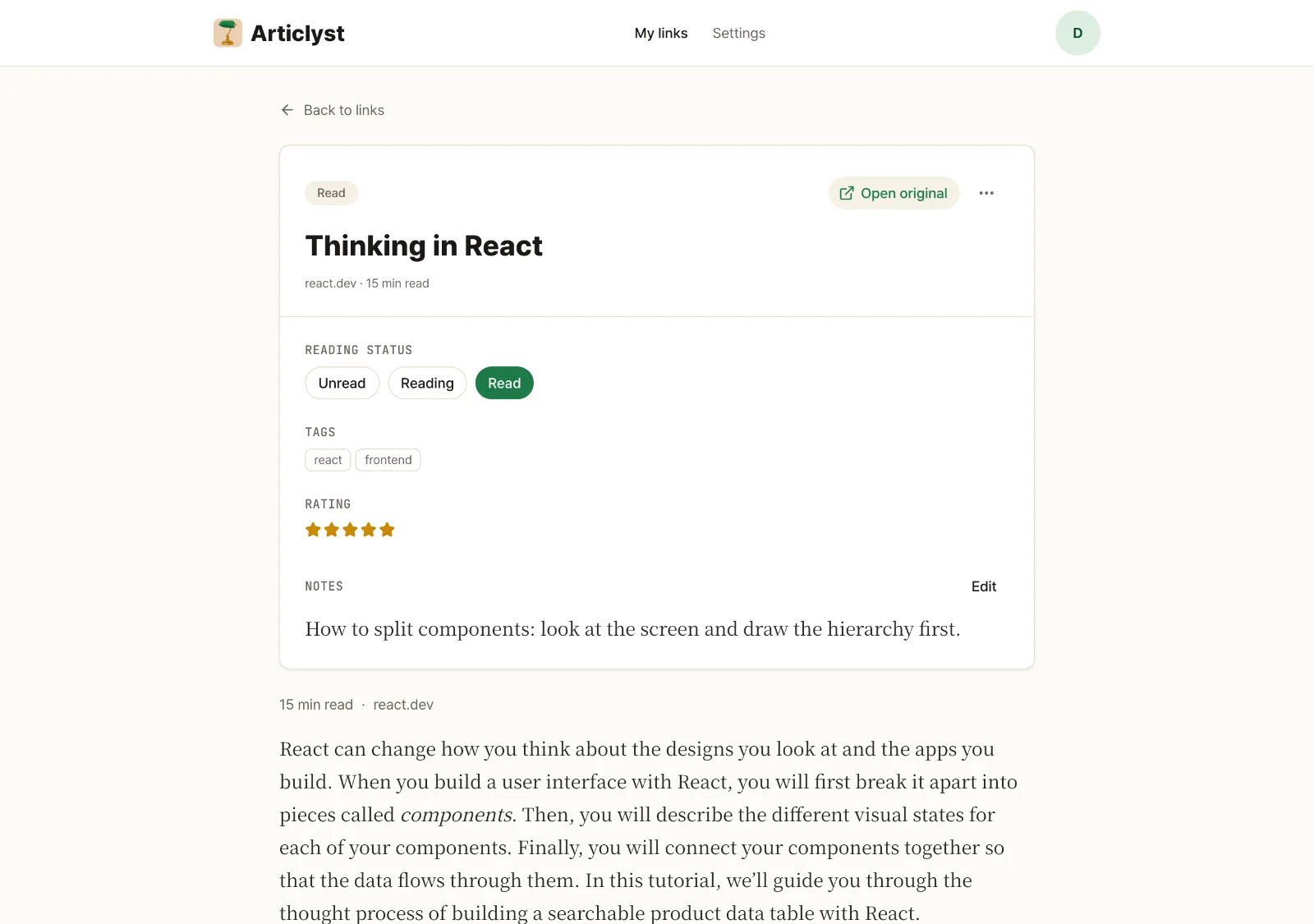
- The card at the top shows the title, reading status, tags and notes, with the article text below it. Above the text you'll see "N min read · site address".
- To see the original page, click Open original in the top-right corner. It opens in a new tab.
If Articlyst couldn't fetch the article text, you'll see "We couldn't get the article text". In that case, click Read on the original site.
Read in the app
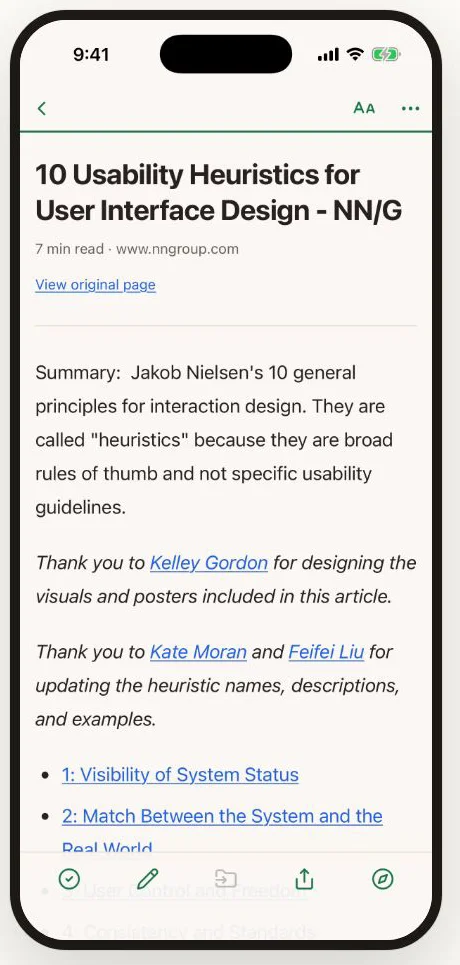
Tap an article in the list to open it in reader mode. Articles with fetched text always open in reader mode first.
Change the view settings
- Tap Aa in the top-right corner.
- Choose what you like in View settings.
| Setting | Options |
|---|---|
| Text size | 5 steps (the middle one is the default) |
| Typeface | Sans, Serif |
| Line spacing | Tight, Normal, Loose |
| Theme | Light, Sepia, Dark (follows the app's appearance by default) |
Your settings carry over to every article you open.
See the original page
Tap the compass icon (View original page) at the far right of the bottom toolbar to open the original page inside the app. Tap the reader icon in the same spot (View reader) to go back to reader mode. Articles whose text couldn't be fetched open on the original page from the start.
Something wrong with this page? Send feedback