Save several open tabs at once
Use the Chrome extension's tab picker to choose open tabs, save them all at once, and close the ones you saved.
On this page
Tabs you left open to read later piling up? Pick them in the tab picker, save them all at once, and close them.
How to save
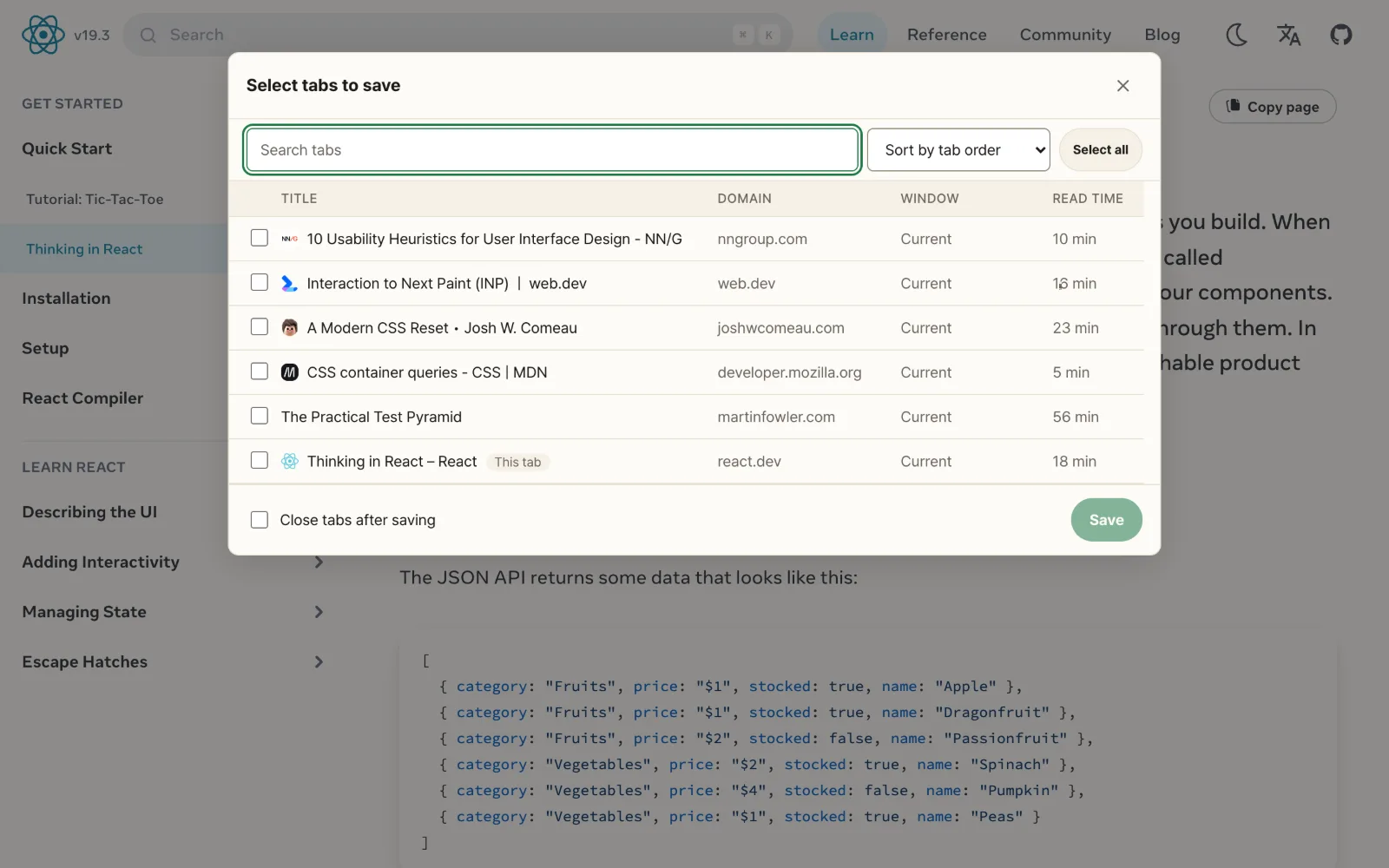
- On any page, press ⌘⇧Y (CtrlShiftF on Windows/Linux). The Select tabs to save window opens on top of the page.
- Check the tabs you want to save. To save all of them, click Select all.
- To close the tabs after saving, check Close tabs after saving at the bottom.
- Click Save N.
When you have lots of tabs
- Type a word in Search tabs to keep only tabs with that word in the title or address.
- You can sort by Sort by title, Sort by domain, Sort by URL or Sort by reading time.
- The Window column shows "Current" for tabs in this window, and a label starting with
#for tabs in other windows. - If you've created categories, you can pick one in Save to at the bottom of the window, next to Save N. All the selected tabs go into that category.
Press Esc to close the window.
If the shortcut doesn't work
Where the extension isn't allowed to draw on the page, such as chrome:// pages, the Chrome Web Store and PDFs, the tab picker opens inside the popup instead. If it still doesn't open, click the Articlyst icon in the toolbar and choose tabs from the Open tabs tab in the popup.
Something wrong with this page? Send feedback