Save the current page with the Chrome extension
Save the page you're viewing in Chrome to Articlyst from the extension popup or with a keyboard shortcut.
On this page
With the Chrome extension, you can save the page you're on with one click or a keyboard shortcut. To install it, see Download.
Save from the popup
- Open the article you want to save.
- Click the Articlyst icon in the toolbar. If you don't see it, click the puzzle-piece icon and pin Articlyst. You can also open the popup with ⌘⇧. (CtrlShift. on Windows/Linux).
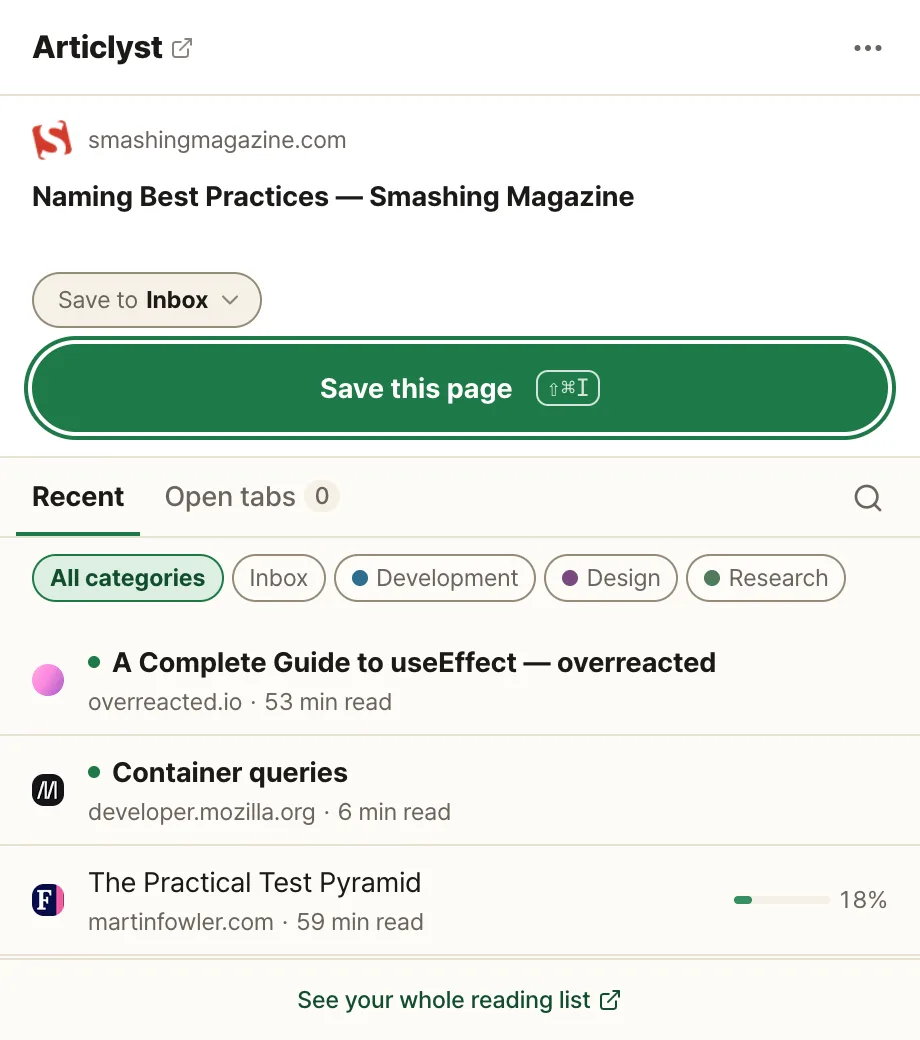
- To save straight into a category, pick one from the Save to chip. It starts on Inbox. Once you pick a category, it stays selected the next time you save. You can also create one right here with + New category.
- Click Save this page. This button has focus when the popup opens, so you can just press Enter.
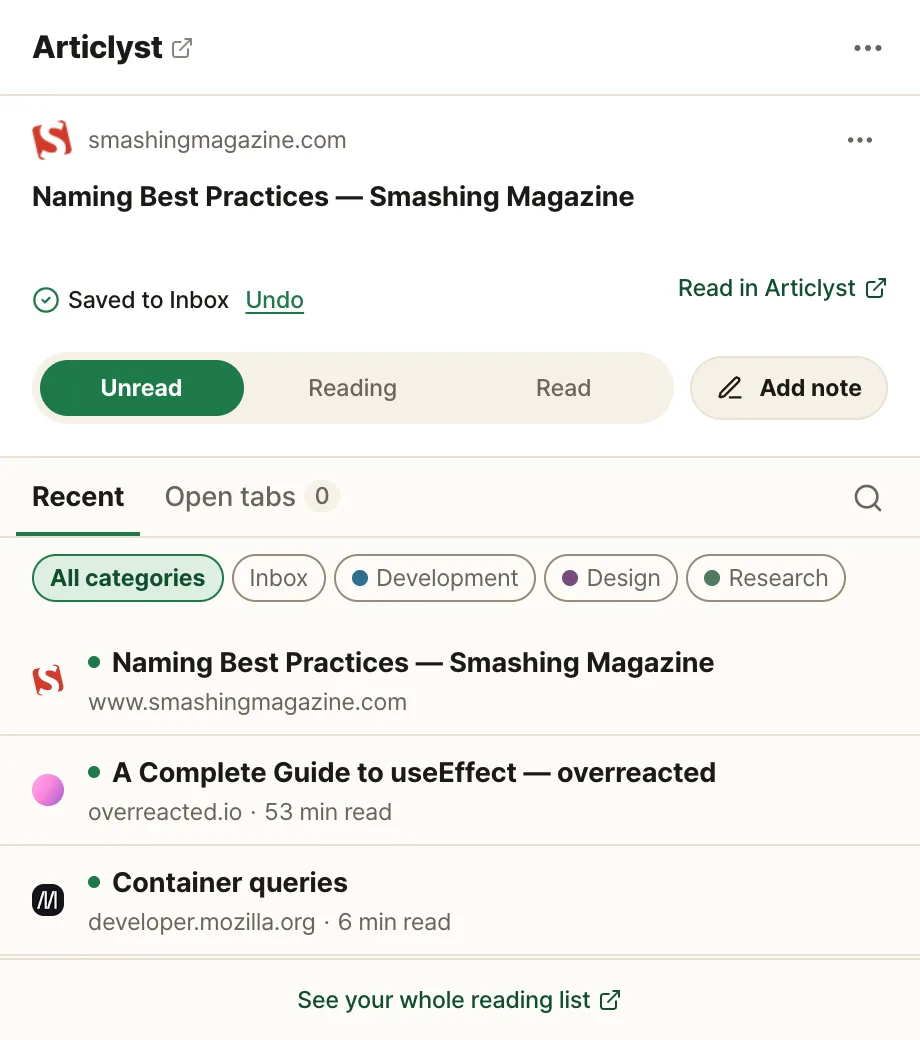
After saving, you can do a few things right in the popup.
- Undo: Reverts the save you just made.
- Unread / Reading / Read: Changes the reading status.
- Add note: Adds a note to this article. If there's already a note, the button says Edit note.
- Read in Articlyst: Opens it in the reader on the web.
Save instantly with a shortcut
Press ⌘⇧I (CtrlShiftL on Windows/Linux) to save without opening the popup. The page goes into the category you picked last, and a "Saved to …" notice briefly appears on the page.
Warning
Starting with Chrome 152, Chrome uses CtrlShiftL for its own feature, so on a new install on Windows/Linux this shortcut may be unassigned. See Keyboard shortcuts to assign a different key.
What you might see when saving
- If you open the popup on a page you've already saved, you'll see "Already saved" and when you saved it. Saved pages also get a ✓ on the toolbar icon.
- On pages that can't be saved, like
chrome://pages or the Chrome Web Store, the popup says "Browser pages can't be saved" or "Add-on store pages can't be saved". If you use the shortcut there, you'll see "This page cannot be saved". - Saving works even without an internet connection. You'll see "Saved · it will sync once you are online", and the page uploads when you're back online.
To save many tabs at once, see Save several open tabs at once.
Something wrong with this page? Send feedback