Mark as read
Mark finished articles as read and add a star rating if you like. Works on the web, the apps and the Chrome extension.
On this page
Each article has one of three statuses: Unread, Reading or Read. Mark the ones you finish as Read so you can filter your list down to what's left.
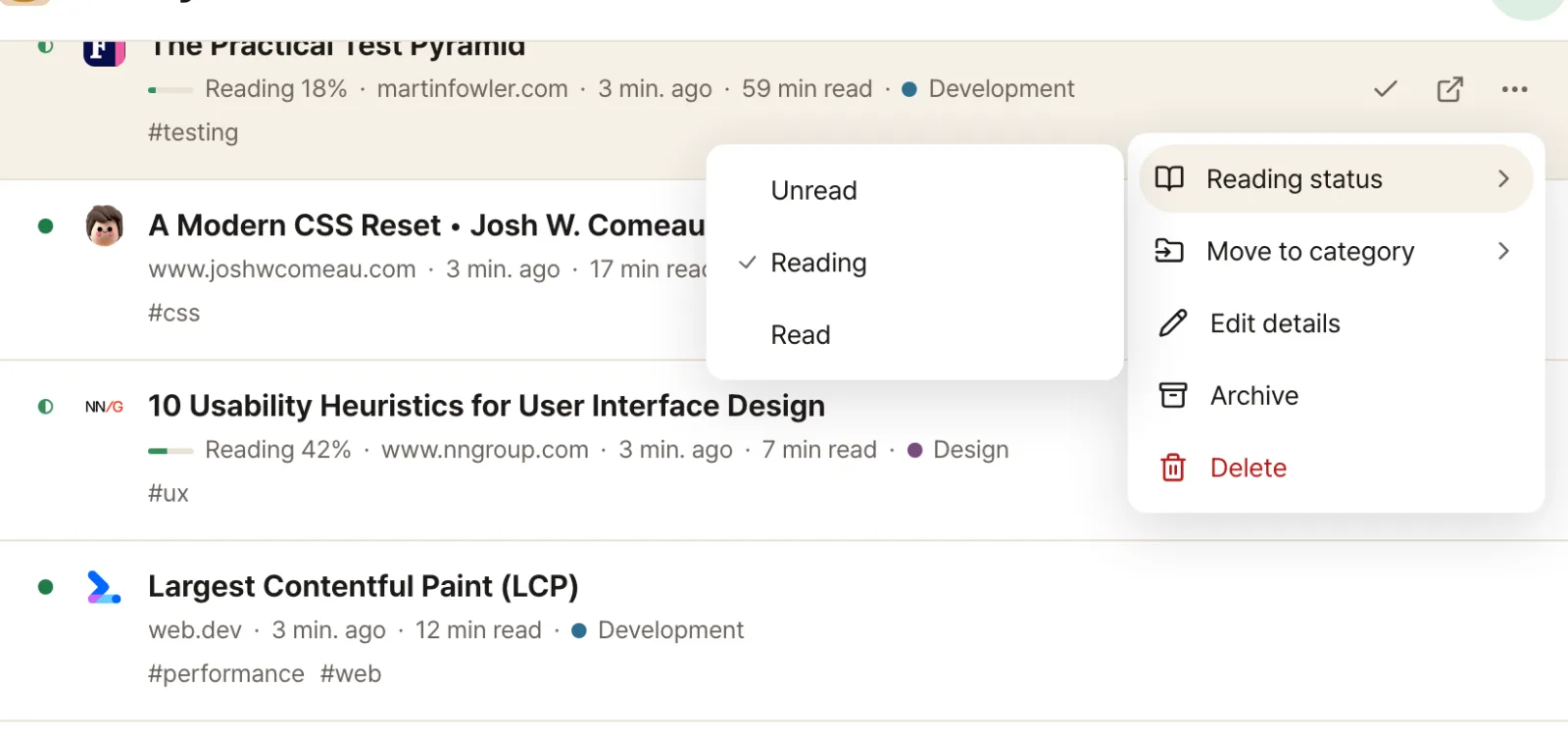
- Circle in the list: Click the circle to the left of the title. Unread and Reading articles become Read, and Read articles go back to Unread. A filled circle means Unread, a half-filled one means Reading, and an outline means Read.
- On hover: Click the ✓ button that appears on the right. On an article you've already read, it's a ↺ button that sets it back to Unread.
- … menu: Pick one of the three under Reading status.
- Reader: Under Reading status on the title card, pick Unread, Reading or Read.

- Swipe right: Swipe an article to the right in the list, then tap Mark read (or Mark unread if you've already read it).
- Touch and hold: Under Reading status, pick Unread, Reading or Read.
- Reader: Tap the check button in the bottom toolbar.
- Swipe right: Swipe an article to the right in the list, then tap Mark read (or Mark unread if you've already read it).
- Touch and hold: Under Reading status, pick Unread, Reading or Read.
- Reader: Tap the check button in the bottom toolbar.
- Shortcut: While viewing a saved article, press ⌘⇧, (CtrlShift, on Windows/Linux) to mark it Read. If the page isn't saved, you'll see "This page is not saved yet".
- Popup: Open the popup on a saved page and click Read.
Add a star rating
- App: In the reader, tap … in the top-right corner → Rate this article, pick 1 to 5 stars, and tap Mark as read. That rates the article and marks it Read in one go.
- Web: In the reader, click … → Edit details, pick a Rating, and click Save changes.
Ratings show as ★ in your list on the web.
Something wrong with this page? Send feedback