Keyboard shortcuts
Every keyboard shortcut in the Chrome extension and on the web, and how to change the extension's shortcuts.
On this page
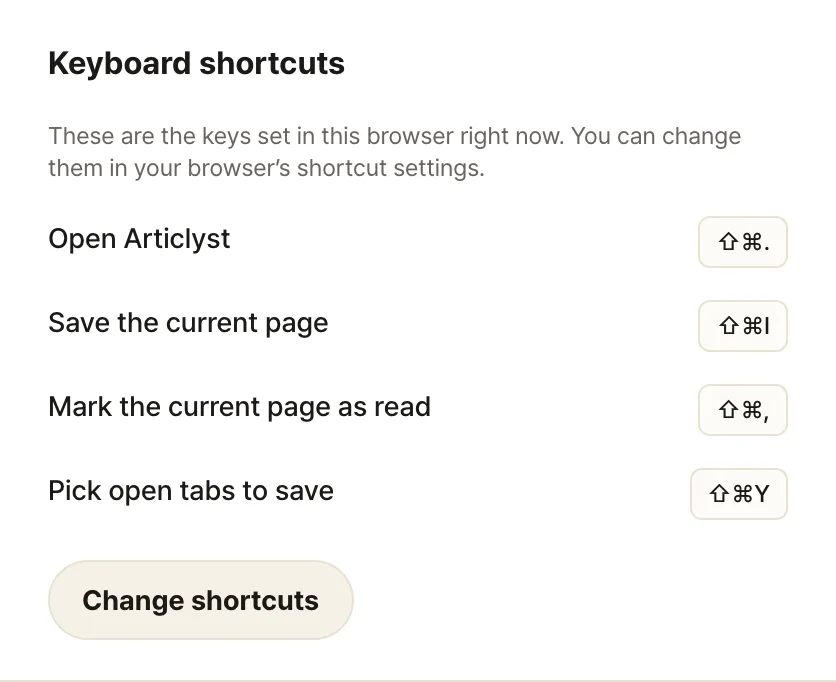
These are the shortcuts for the Chrome extension and the web. You can change the extension's shortcuts to other combinations Chrome allows (with Ctrl or Alt, or ⌘ on a Mac).
Chrome extension
| Action | Mac | Windows/Linux |
|---|---|---|
| Open the Articlyst popup | ⌘⇧. | CtrlShift. |
| Save the current page | ⌘⇧I | CtrlShiftL |
| Mark the current page as read | ⌘⇧, | CtrlShift, |
| Pick open tabs to save | ⌘⇧Y | CtrlShiftF |
Keyboard shortcuts in the extension settings shows the keys assigned in this browser right now. If a key is empty, it shows "Not set".
Warning
Starting with Chrome 152, Chrome uses CtrlShiftL to collapse vertical tabs. So on a new install on Windows/Linux, the save shortcut may show "Not set". Assign a different key using the steps below.
Change the extension's shortcuts
- Click … in the top-right corner of the popup → Keyboard shortcuts. The shortcuts section of the extension settings opens.
- Click Change shortcuts. Chrome's extension shortcuts page (
chrome://extensions/shortcuts) opens. - Click the pencil button next to the Articlyst item and press the keys you want.
Web
| Key | Action |
|---|---|
| / | Open search in My links |
| Esc | Clear and close search; close the Add link form |
| Shift + click | In selection mode, select every article in between |
The tab picker and the extension's dialogs also close with Esc.
Something wrong with this page? Send feedback