How to save the tabs you can't bring yourself to close
You keep tabs open because closing one feels like losing it. Here's how to save the ones you mean to read, close them, and still find your way back to where you stopped.
Most tabs stay open for one reason: closing them feels like losing them. So the tab bar turns into storage, and the more it holds, the less it tells you. Titles shrink until only favicons are left. You can't say what's in there, and you still won't close any of it.
Closing tabs isn't really the fix. Giving their job to something else is.
Not every tab is the same tab
Leave the tabs you're working in alone. The doc you're writing from and the email you owe a reply need to stay open to be any use.
The ones to deal with are the tabs you kept for later. They do exactly two jobs in your tab bar: they remember where an article is, and they remind you that you haven't read it. Once something else does those two jobs, the tab can go.
Couldn't bookmarks do this?
Chrome has a way. ⌘⇧D (CtrlShiftD on Windows and Linux) bookmarks the open tabs in your current window into one folder. That keeps the addresses, but not which ones you've read, so a few months later the folder is a mix of both. Tab groups fold away nicely, but they're still open tabs.
If only a few articles pile up, that's enough. If they keep coming, you want a place that also tracks what you've read.
Pick, save, close
In the Articlyst Chrome extension, this happens in one window. On any page, press ⌘⇧Y (CtrlShiftF on Windows and Linux) and Select tabs to save opens over the page. It lists your open tabs with their title, domain, window and reading time, including tabs in your other windows. On pages like chrome://, where it can't draw over the page, the tab picker opens in the popup instead.
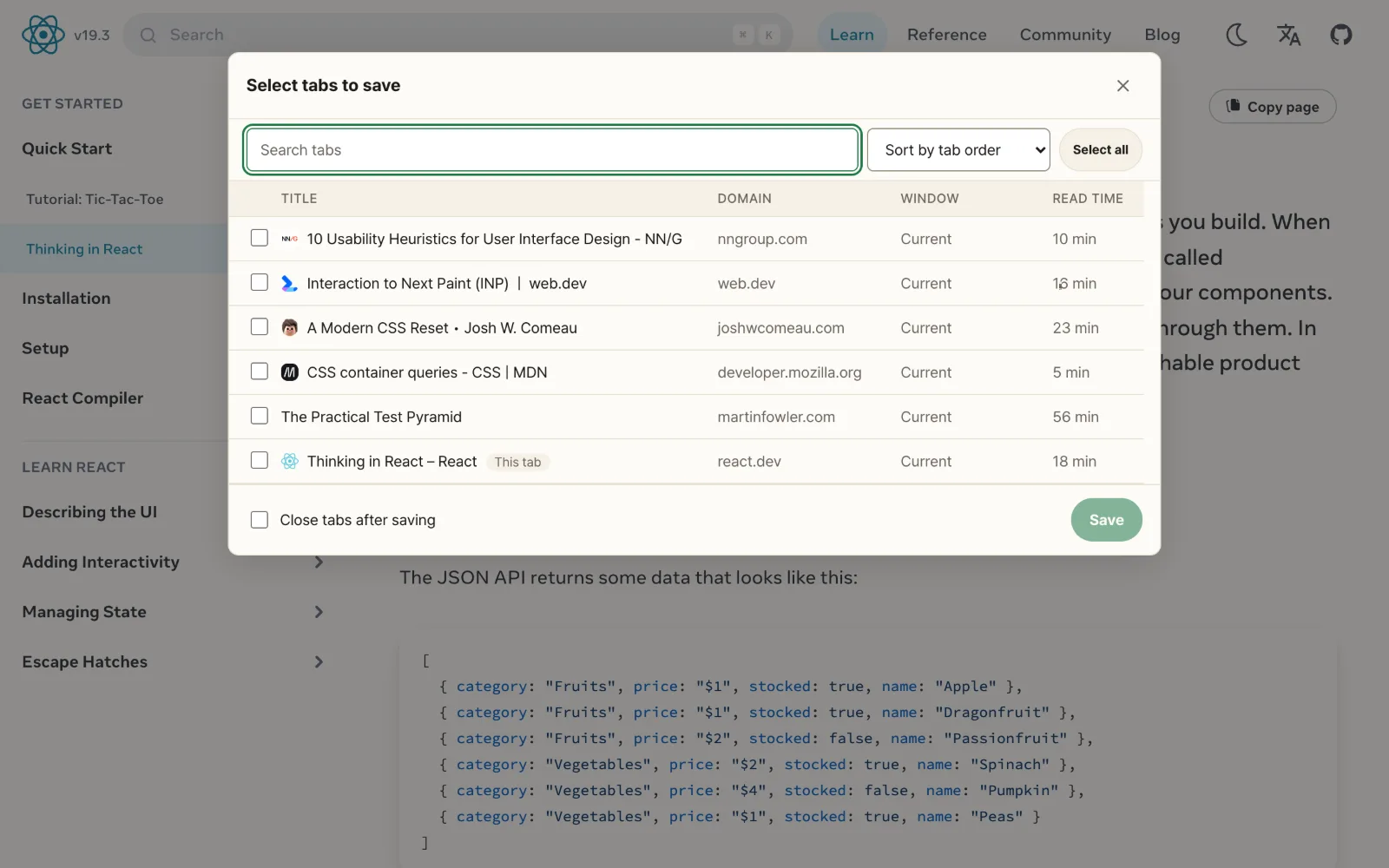
If you have more to read than to work on, click Select all and uncheck the tabs you're using. When the list is too long to scan, type in Search tabs or switch to Sort by domain.
Close tabs after saving is off by default, so nothing closes until you turn it on. Even then, a tab whose save was refused stays open. A tab waiting to sync, because you're offline for example, does close, and its save goes out when you're back online.
The full steps are in Save several open tabs at once.
The way back to what you closed
Saving on its own only moves the pile from the tab bar to a list. You also need to see the way back.
In Chrome, open the extension's settings and, under New tab, choose Articlyst new tab. Every new tab then lists up to 5 articles you started, with how far you got, and below them up to 5 recent saves you haven't opened. What you were reading yesterday is right there, without a hunt through the tab bar.
The iPhone and Android apps save your scroll position, so reopening an article takes you back to the paragraph you left. If you didn't finish the article you read last, it also sits at the top of your list as a Continue reading card for 24 hours. For places with no connection, like the subway, the apps have offline reading.
The web reader saves your scroll position too, so reopening an article takes you back to where you left off. The web list also shows how far through you are on articles marked Reading.
If you only try this once
- Sort your tabs in your head: the ones you're using, and the ones you kept for later.
- Open the tab picker and check only the ones for later.
- Turn on Close tabs after saving and save.
- Switch your new tab to Articlyst new tab.
When you can read your tab titles again, you're done.